Share a dashboard
You made a dashboard and want others to see it — or build on it. A dashboard is private by default: nobody else can open it until you share it. This guide shows how to grant access, what each side can do with it, and how to say how much to trust what they open.
Before you start
Sharing needs the dashboard saved on the server. Signed in, every dashboard saves on its own. Not signed in, the settings panel shows a sign-in step where the sharing form would be.
The sharing form is part of the editing surface. A phone-size window holds the dashboard in view mode, so share from a window large enough to show the Edit switch.
Share with a person
- Open the dashboard.
- If the header switch is on View, select Edit.
- On the right rail, select the gear — Dashboard settings.
- Scroll the panel to the Sharing section.
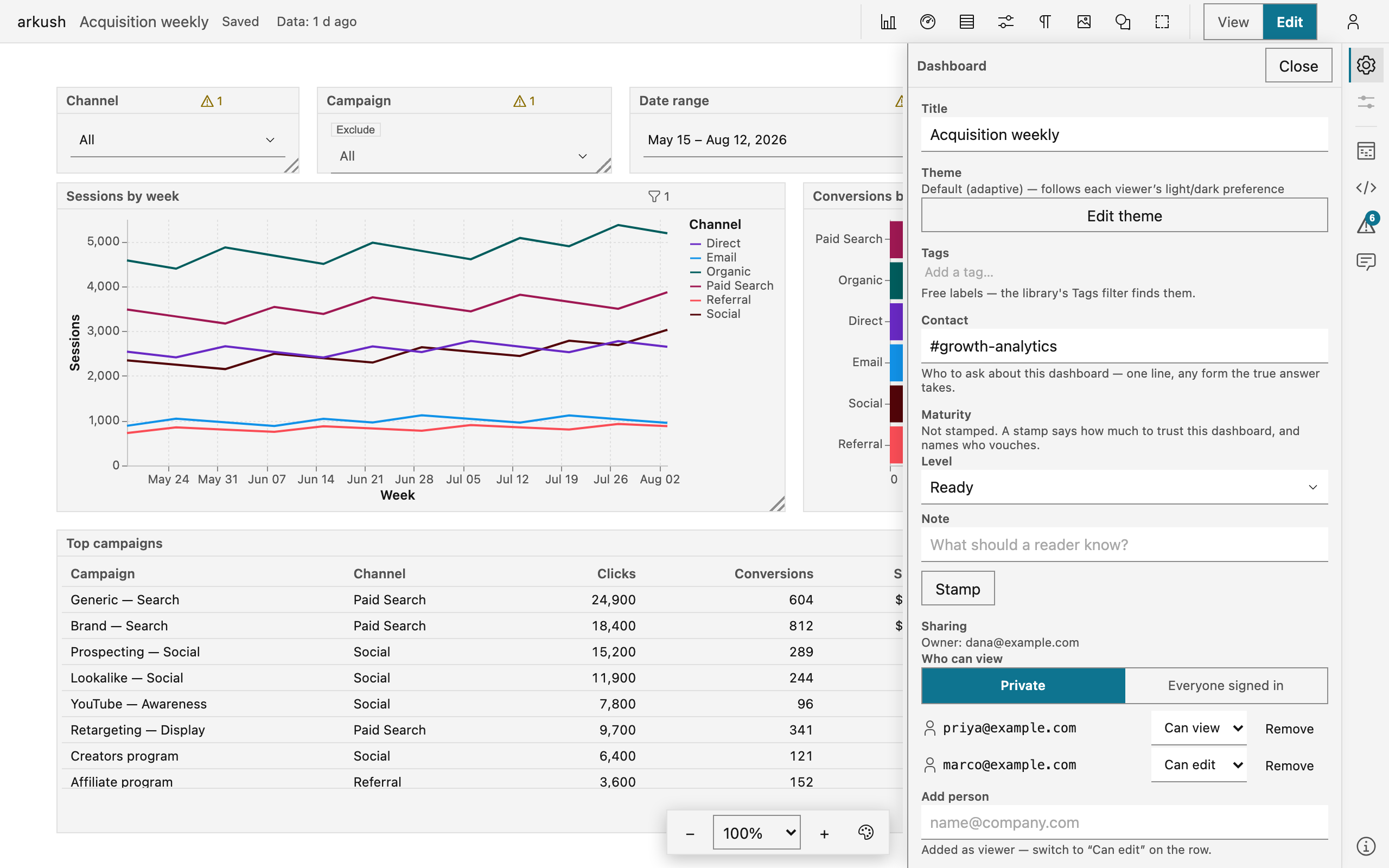
- Type the person's email into the Add person field and press Enter.
- Read the dialog and select Share.
The new row reads Can view: the person can open the dashboard and read all the data it carries. To let them change it, switch the row to Can edit and confirm the second dialog.
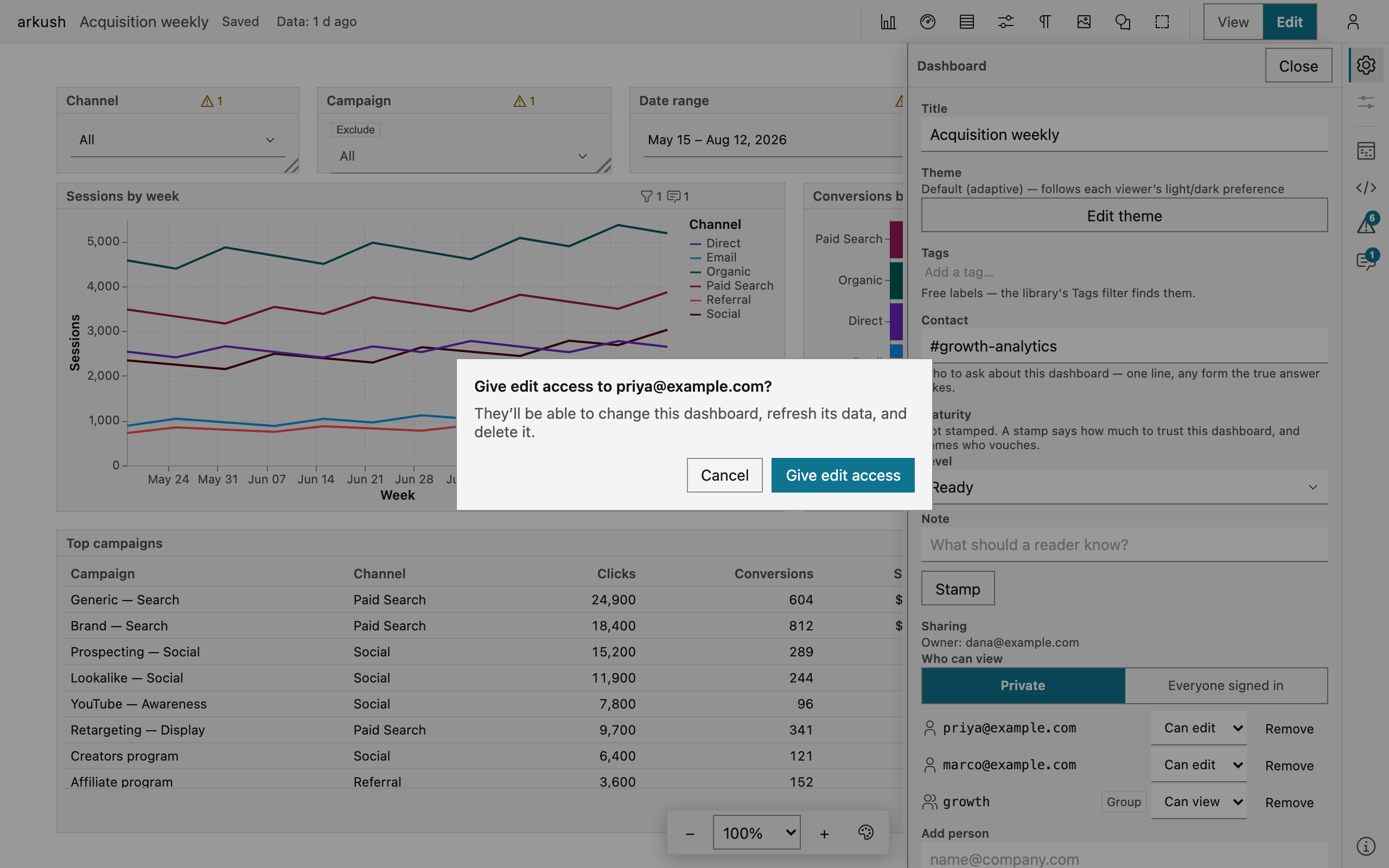
Every act that widens access asks first — a dialog names who gains what before anything changes. Adding a person, granting edit, and opening to everyone all confirm. Taking access back never asks: Remove is one click, and switching a row back to Can view applies at once.
The link to send is the dashboard's own address — copy it from the browser bar. The address grants nothing by itself: whoever opens it needs a share, and anyone without one reads a refusal. A recipient who is not signed in sees a sign-in page in the link's place, and signing in lands them on your dashboard, filters and all.
Share with a group
Where this instance defines groups, the Sharing section adds an Add group picker. Pick a group and confirm — the dialog names the reach: every member, including anyone who joins the group later, gets the role. A group row carries a Group chip beside the name and the same access pick as a person's row.
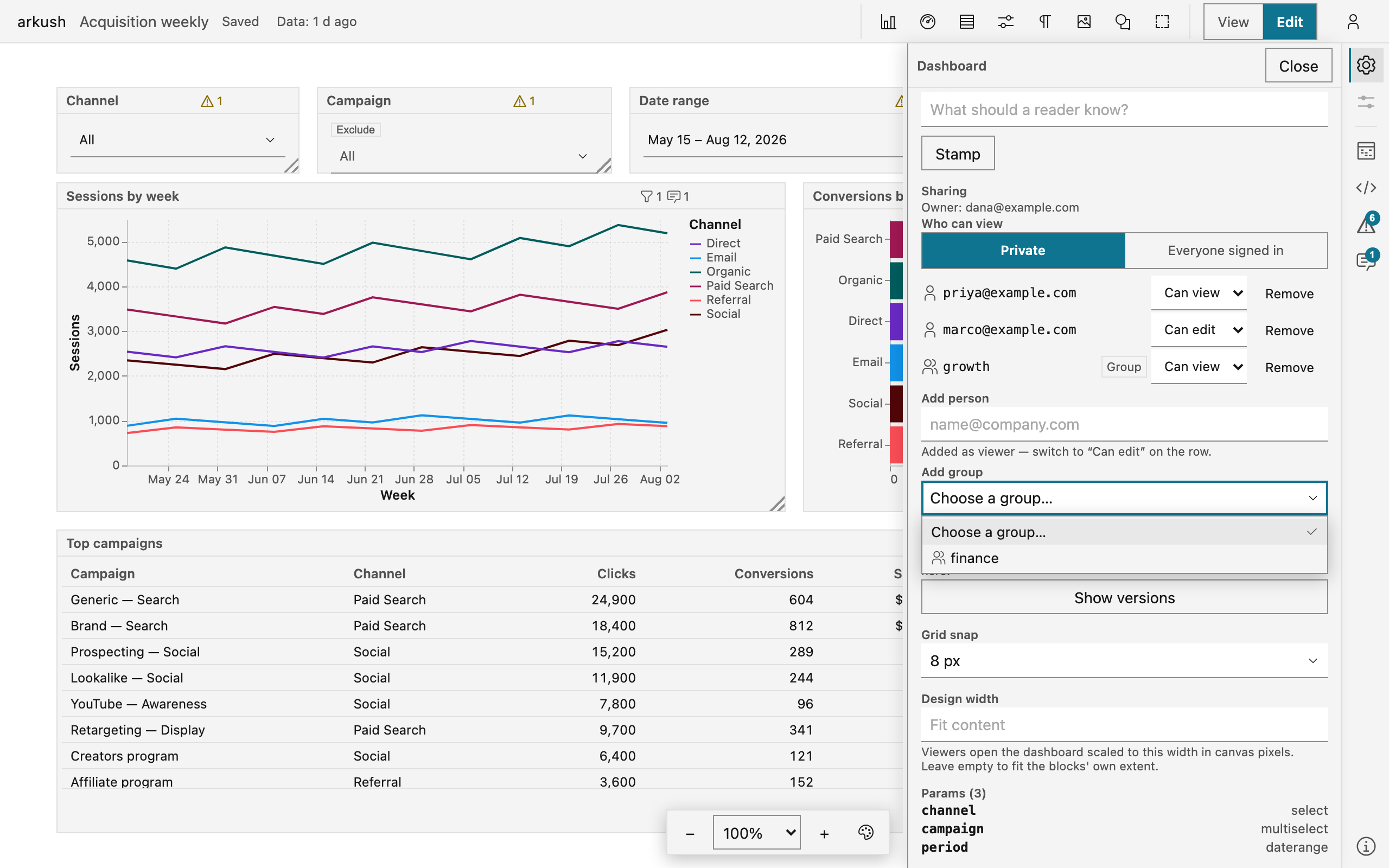
Groups belong to the instance, not to the dashboard, and an instance admin manages them. They come from one of two places: a groups file, whose membership admins edit in the app, or the organization's Google groups, whose membership lives in Google. A group this instance does not define grants nobody — the share row stays on the list, matching no one.
Open it to everyone
The Who can view switch at the top of the Sharing section has two positions. Private is the default: the owner and the people and groups on the list. Everyone signed in opens viewing to anyone with an account on this instance — viewing only, never editing. The dialog states exactly that before the switch takes, and switching back to Private is one click.
What a viewer can do
A person with Can view gets the full reading surface:
- read every chart and table — the data is saved with the dashboard, so opening it runs no query on any account,
- filter with the controls and the click filters — their selections ride their own page address and never change the dashboard,
- download a chart as a PNG or SVG picture, and the data behind a block as a CSV,
- comment — start a thread, reply, and delete their own comments,
- adjust one chart for themselves with its Chart options button — the dashboard stays as you authored it.
A viewer cannot change the dashboard, cannot open its version history, and cannot run a query anywhere. History stays with editors deliberately: an old version can hold what the current dashboard no longer shares. What viewers see is its own guide: Read a dashboard.
What an editor can do
Can edit is the whole dashboard: change every block and query, refresh the data, move it to the trash or restore it — and change the sharing itself. A trashed dashboard stays restorable for 30 days, then deletes permanently. Shares trust the whole team: any editor can add people, remove them, or open the dashboard to everyone. Give edit access to people you trust with all of that.
One stamp is the exception. An editor sets Draft, Ready, and Retired, but Official needs the analyst right — the next section says why.
NOTE — A connected agent acts as you but can never change who has access. An agent asked to share a dashboard answers with a refusal that names the sharing form: a grant needs a person reading the dialog, and an agent has no such moment.
Say how much to trust it
The same panel carries the trust fields, above Sharing: Tags, Contact, and Maturity. Tags file the dashboard — the library's Tags filter finds them. Contact says who to ask: a channel, an email, a team.
The maturity stamp is a named claim about the whole dashboard. Pick a Level — Draft warns readers off work in progress, Ready says it is fit to read, Official is the organization vouching, Retired says do not build on it — write a Note, and select Stamp. Readers see the level as a badge beside the title, with who vouched and when.
After the content changes, the badge adds "· earlier version": the claim is older than the content. Stamp again vouches for the current version, and Remove stamp withdraws the claim. Official is the organization's claim, not the maker's — setting it, overwriting it, and removing it need the analyst right, so a non-analyst's Level picker does not offer it.
If you are locked out
A share can be removed, and an editor can add people back — ask the owner or any editor. Ownership itself is different: only the current owner or an instance admin hands the dashboard to a new owner, and no save can leave it with no owner at all, so an editor cannot lock the owner out. Where nobody with access is left, an instance admin can move the dashboard to a new owner or grant themself access — visibly: the admin's self-grant appears in the dashboard's own sharing list.