Connect an AI agent
An AI assistant can build dashboards with you: write the queries, add the charts, arrange the canvas. The assistant works on the same dashboards you open, through a connection that you approve once.
Agents connect over MCP — the open standard that assistants use to reach tools. claude.ai, Claude Desktop, Claude Code, and ChatGPT all support MCP connections.
Before you start
Sign in to arkush first. A connected agent acts as you, so the connection needs your account.
The connection address
Each arkush instance has one address for agents — its own web address plus
/mcp:
https://<your instance>/mcpThe same address, with a Copy button, is in the app: open the account menu at the top right and select Connect an agent. While agents are connected, the same menu item reads Agents · N connected. Two more entries open the same panel: the Connect an AI agent step on an empty dashboard, and the Connect an agent… button in the Help panel.
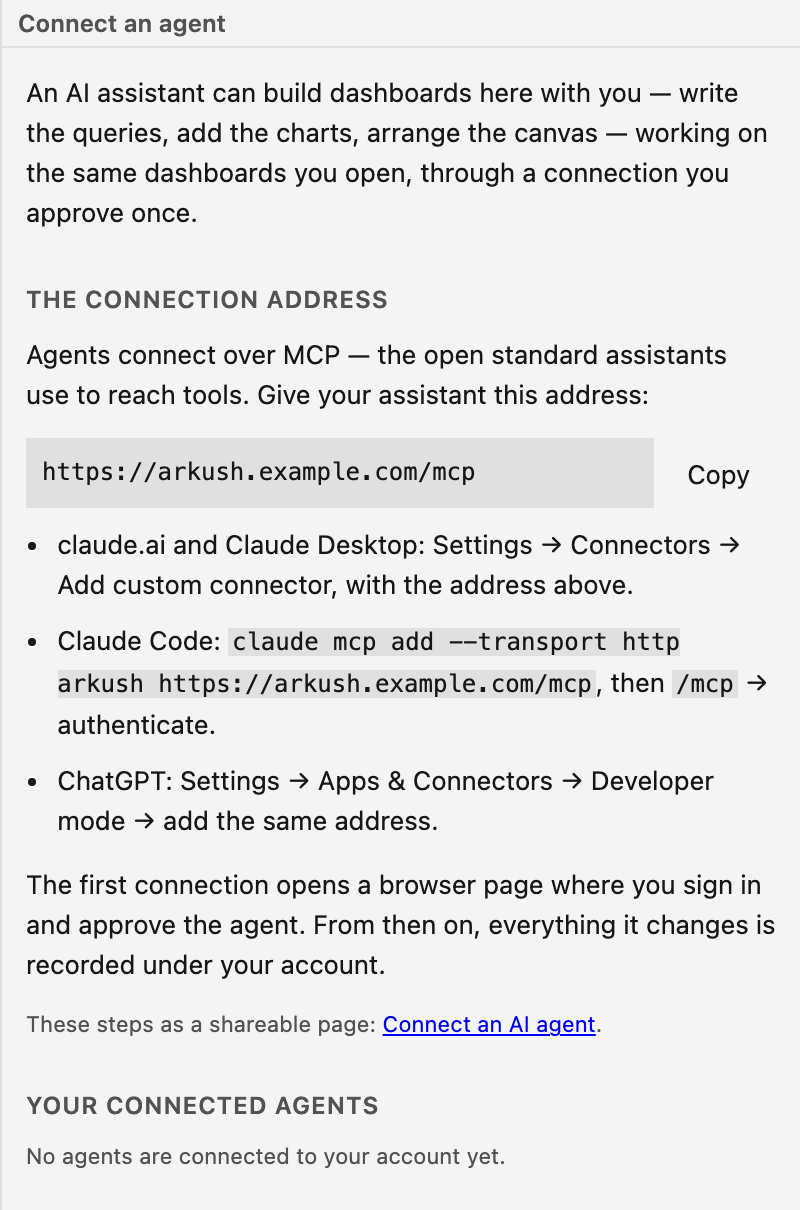
Connect from your assistant
claude.ai and Claude Desktop
- Open Settings → Connectors.
- Select Add custom connector.
- Paste the connection address.
- Confirm the new connector.
Claude Code
-
Run
claude mcp add --transport http arkush
            https://<your instance>/mcp
. - Type
/mcpand authenticate the arkush entry.
ChatGPT
- Open Settings → Apps & Connectors.
- Turn on Developer mode.
- Add a connector with the connection address.
Approve the connection
The first connection opens a browser page on this instance. Sign in there and approve the agent. The approval creates a grant: the agent may now act as you here. Everything that the agent changes is recorded under your account.
The approval expires: the panel shows the date beside each agent. A connection that stays unused for 30 days lapses and needs a fresh approval.
NOTE — The agent gets its own access tokens, valid for this instance only. The agent never gets your Google credential.
Disconnect an agent
- Open the account menu and select Agents · N connected. While agents are connected, the Connect an agent item carries this label.
- Find the agent under Your connected agents.
- Select Disconnect and confirm.
Access stops immediately. A new connection needs a fresh approval.